Getting started
From signup to a sprint your coding agent can pull work from — create a project, let Laimon build the roadmap, get items into Ready, and connect an agent over MCP.
Last reviewed · maintained by Founder
What you need before you start
An email address and a project you are actually working on. That is enough to finish this page.
Two things make it better and neither is required to begin: a GitHub repository, and a coding agent that speaks MCP — the ones we use daily are Claude, Claude Code and Cursor. You can add both later from Integrations and MCP in the sidebar.
Connecting GitHub and Slack together is what switches on the hourly autonomous pass — Laimon only grooms the board on its own when it has both.
How long does setup take?
One conversation. Most of it is spent telling Laimon what you are building; it drafts the roadmap and the first items from that. Connecting a coding agent afterwards is a URL and a sign-in.
There is no data migration to plan and no import to schedule — which also means there is nothing to bring across from an existing tracker.
1. Create an account
Sign up at app.laimonade.com/register. Every plan starts with a trial, and the platform is not feature-gated — plans differ in monthly AI credits, not in what you can do. See pricing.
2. Create your project
After signing in you are asked to create a project — the screen calls it an agent, because each project has its own Laimon with its own backlog, sprints and roadmap.
Give it a name and press Create agent. Stack, goals and setup are not a form to fill in: Laimon picks those up in the conversation that follows.
If a colleague has already set up the project, choose Join existing agent instead and paste the invitation code they sent you. You will land in the same project rather than a second copy of it.
3. Tell Laimon what you are building
Laimon opens a chat and asks about the project. Answer in plain language — what the product is, who it is for, what state it is in, what you are trying to get done next.
This is the highest-leverage ten minutes in the whole setup. Everything downstream reads from it: the milestones it generates, how it words acceptance criteria, and what it treats as risky when it grooms an item. Vague answers here produce a vague backlog later.
4. Connect GitHub and Slack, or skip them
The next step offers two integrations. Both are optional and both can be added later from Integrations.
- GitHub lets Laimonade match commits and pull requests to backlog items, which is what makes evidenced closure possible. Connect this one if you can.
- Slack lets your team ask Laimon questions and receive sprint updates without opening the app.
Skipping is a real choice, not a deferral — nothing later in the setup depends on either.
5. Let Laimon build the roadmap
Laimon then generates your initial milestones from what you told it, and takes you to the dashboard when it is finished. Expect a handful of milestones, not a finished plan: they are a first draft to argue with, and arguing with them in chat is how they improve.
If generation cannot complete, you get a starter milestone instead and a note saying so. Nothing is lost — edit it on the Roadmap or ask Laimon to try again.
6. Get work into Ready
Your board now exists, and it is probably empty in the column that matters. Ready / Active is the column a coding agent pulls from, so work has to reach it before anything can be handed over.
The fastest route is to ask. In the Laimon chat, describe the work the way you would describe it to a colleague:
The signup form accepts an email with no domain and the API 500s on it. Should be a validation error, not a crash.
Laimon files that as a bug, writes acceptance criteria, and asks you about anything it cannot infer. Then either ask it to add the item to this week's sprint, or drag the card into Ready / Active on the Board.
Before you hand an item to an agent, read its acceptance criteria once. It is the difference between an agent that gets it right and one that guesses convincingly — see what makes an item agent-executable.
7. Connect your coding agent
Open MCP in the sidebar for your endpoint and credentials, then follow connect your coding agent. In Claude or Claude Code it is one connector URL and a sign-in.
Once connected, ask your agent:
What's ready this sprint?
It will read the Ready column itself. From there: load the item, do the work, submit it for review.
8. Review what came back
Items your agent finished land in In Review. Open one, read it against its acceptance criteria, and either accept it into Done or send it back with what is missing.
This step is not ceremony. It is the only place a human verdict enters the loop — nothing in Laimonade moves an item to Done for you.
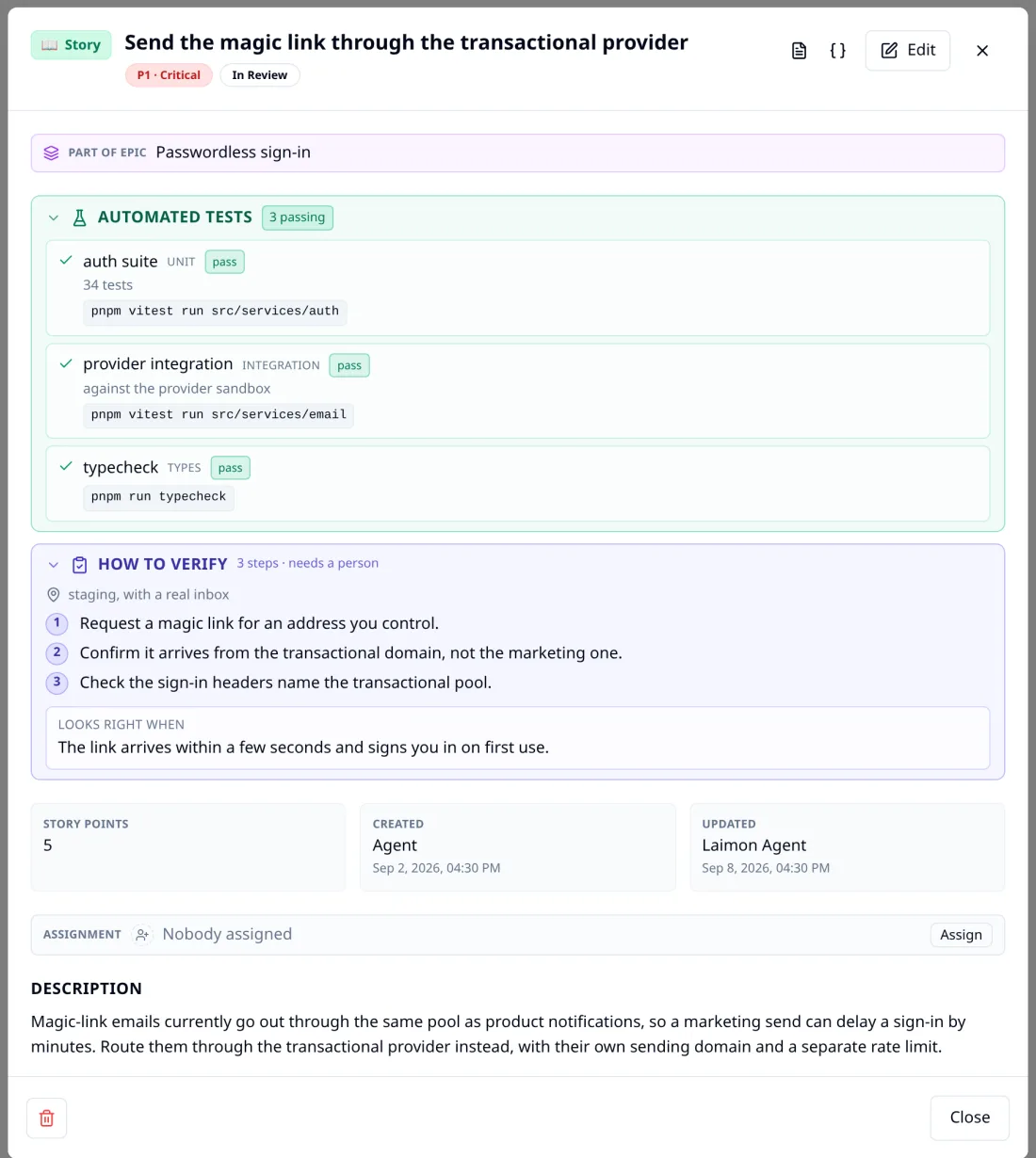
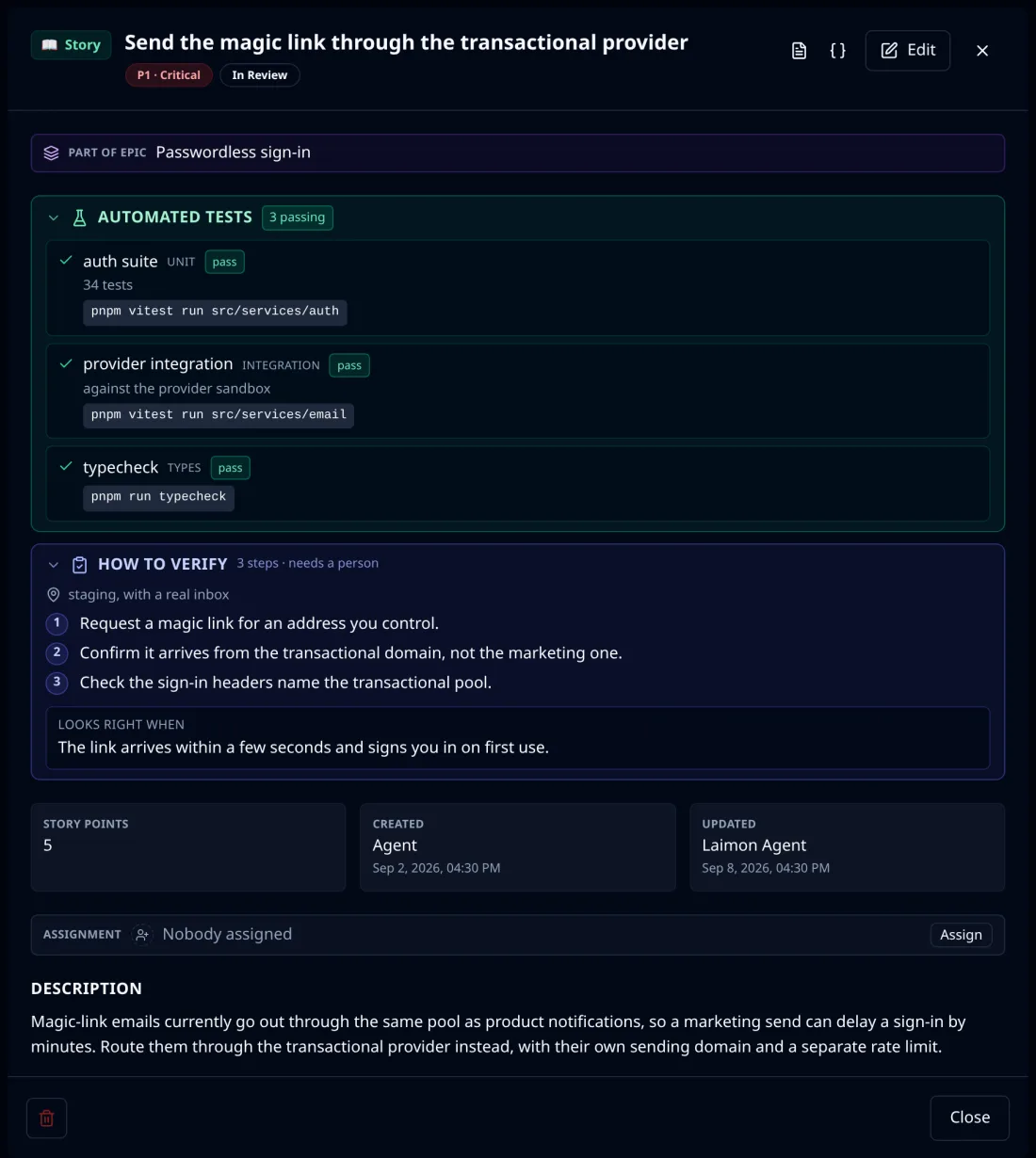
What you are reading is the agent's own attestation: the checks it ran, whether they passed, and the exact commands so you can re-run any of them rather than take its word.
What to do next
- If an agent's first attempt missed the point, the item was underspecified more often than the agent was wrong. Refine the criteria and ask again.
- Turn on unattended implementation for one small, well-specified item and watch what happens before you turn it on for anything else. It is opt-in per item, by a person, and always will be.
- If something behaves differently to this page, troubleshooting covers what people actually hit.